ChatRAG Documentation
Everything you need to build, customize, and deploy AI agents that work with your content.
Getting Started
ChatRAG helps you build AI agents that answer based on your documents. Get up and running in just a few minutes with our simple setup process. Perfect for AI customer support for SaaS and other use cases.
Upload Content
Add PDFs, URLs, or paste text
Customize Agent
Set personality and behavior
Deploy Anywhere
Embed on your website
Quick Start
- 1. Sign up and create your first agent
- 2. Upload PDFs, URLs, or paste content
- 3. Start chatting in your interaction
- 4. Embed on your website when ready
Watch: How to Create Your First Agent
Follow this step-by-step video guide to create an agent in ChatRAG.
Embedding
Embed your AI agent on any website with just one line of code. The widget is fully responsive and customizable to match your brand.
Where to add the script?
Option 1 (Recommended): Add the script right before the closing </body> tag of your root HTML file.
Option 2: Dynamically inject it using JavaScript when needed (e.g., for single-page applications).
💡 Pro tip: The script loads asynchronously and won't block your page rendering. Place it anywhere, but adding it before </body> ensures your content loads first.
Bubble Embed
<script
  src="https://chatrag.co/embed.min.js"
  data-agent-id="your-agent-id">
</script>
Secure User Authentication
For secure user identification, generate an HMAC token using your user's userID and embed secret key. This ensures authentic user sessions and prevents spoofing.
// Backend implementation
const crypto = require('crypto');

const userId = 'user123';
const secretKey = 'your-embed-secret-key'; // From specific agents embedding

const hmacToken = crypto
  .createHmac('sha256', secretKey)
  .update(userId)
  .digest('hex');

// Include in embed script
<script>
window.chatragUserConfig = {
  user_id: "your-application-user-id",
  user_hash: "generated hash code",
  user_metadata: {
    email: "user email",
    name: "user name",
    other data's....
  }
};
</script>

<script
  src="https://chatrag.co/embed.min.js"
  data-agent-id="your-agentid"
  defer
></script>;
Security Benefits
- • Prevents unauthorized users from impersonating others
- • Enables secure user-specific conversation history
- • Allows personalized agent responses based on user data
- • Required for advanced integrations and user tracking
Workspace Management
Workspaces allow you to organize your agents and collaborate with team members. All subscriptions are managed at the workspace level, and you can invite members to help create, train, update, and manage agents.
Workspace Overview
- • Each user starts with a default workspace
- • Create multiple workspaces to organize different projects
- • Invite team members to collaborate on agents
- • Subscriptions are workspace-specific
- • Switch between workspaces easily from the header
Workspace Owner Capabilities
As a workspace owner, you have full control over your workspace:
Member Management
- • Invite members via email
- • Remove members when needed
Subscription Control
- • Upgrade or downgrade plans
- • Manage billing information
- • View usage statistics
- • Cancel subscriptions
Workspace Deletion
- • Delete workspace (requires another workspace)
- • All agents will be removed
- • All data will be permanently deleted
- • Members will lose access
Workspace Member Capabilities
Invited members can collaborate on all agents within the workspace:
Members Can:
- • Create new agents - Build agents from scratch
- • Train agents - Upload documents and train existing agents
- • Update agents - Modify agent settings, instructions, and appearance
- • Delete agents - Remove agents they created or have access to
- • Access all workspace agents - View and interact with all agents in the workspace
- • Configure integrations - Set up Slack, Discord, Notion, and other integrations
Step 1: Creating a New Workspace
- 1. Check out the header
Go to your ChatRAG dashboard and look for the workspace selector in the header
- 2. Click on the workspace dropdown
You'll see your current workspace name
- 3. Select "Create New Workspace"
Click the option to create a new workspace
- 4. Enter workspace details
Provide a name for your workspace (e.g., "Marketing Team", "Customer Support", "Development")
- 5. Click "Create Workspace"
Your new workspace will be created and you'll be automatically switched to it
Step 2: Inviting Team Members
- 1. Go to Workspace Settings
Click on the workspace settings in the sidenav
- 2. Click "Invite Member"
Click the button to invite a new team member
- 3. Enter the member's email address
Type in the email address of the person you want to invite
- 4. Send invitation
The member will receive an email invitation to join your workspace
Step 3: Managing Subscriptions
- 1. Access Billing Settings
Navigate to Pricing
- 2. Upgrade or change plans
Click "Change Plan" to upgrade to Pro or Ultra, or downgrade as needed
Subscription Limits Apply Per Workspace
Each workspace has its own subscription and usage limits:
Step 4: Switching Between Workspaces
- 1. Click the workspace dropdown
Located in the header
- 2. Select a workspace
Choose from your list of workspaces (both owned and member workspaces)
Step 5: Deleting a Workspace (Owner Only)
⚠️ Warning: This Action Cannot Be Undone
Deleting a workspace will permanently remove:
- • All agents in the workspace
- • All conversations and messages
- • All uploaded documents and training data
- • All integrations and configurations
- • All member access to the workspace
- • Subscription and billing history
- 1. Navigate to Workspace Settings
Go to Settings → Workspace Settings
- 2. Scroll to Danger Zone
Find the "Delete Workspace" section at the bottom
- 3. Ensure you have another workspace
You must have at least one other workspace before deleting. The system will automatically switch you to another workspace
- 4. Click "Delete Workspace"
A confirmation dialog will appear
- 5. Type workspace name to confirm
You'll need to type the exact workspace name to confirm deletion
- 6. Confirm deletion
Click the final "Delete" button. The workspace and all its data will be permanently removed
Collaboration Best Practices
✅ Do's
- • Create separate workspaces for different teams or projects
- • Clearly name your agents and workspaces
- • Regularly review member access
- • Document agent purposes and training data
- • Test agents before deploying to production
- • Monitor usage to stay within plan limits
❌ Don'ts
- • Don't share login credentials - use member invitations instead
- • Don't delete workspaces with active agents in production
- • Don't mix personal and business workspaces
- • Don't forget to backup important agent configurations
- • Don't remove members without communicating first
- • Don't exceed your subscription limits
Common Workspace Scenarios
📊 Scenario 1: Marketing Team
Setup: Create a "Marketing" workspace with agents for social media, content, and campaigns
Members: Invite marketing team members who can all update and train the agents
🎯 Scenario 2: Client Projects
Setup: Create separate workspaces for each client project
Members: Invite relevant team members to specific client workspaces
💼 Scenario 3: Agency with Multiple Clients
Setup: One workspace per client with separate subscriptions
Members: Add account managers and specialists to relevant client workspaces
Troubleshooting Common Issues
- • Can't delete workspace: You must have at least one other workspace to switch to
- • Subscription not showing: Only workspace owners can view and manage subscriptions
- • Member can't create agents: Check if workspace has reached agent limit for current plan
- • Invitation not received: Check spam folder or resend the invitation
Chat Widget Control
The ChatRAG JavaScript API lets you control the chat widget programmatically open, close, and set custom messages from your own code.
Custom Initial Messages
Show page-specific welcome messages instead of the default one configured in your dashboard. Call setInitialMessages on the page where you want a custom greeting.
useEffect(() => {
  (window as any).ChatRAG?.setInitialMessages([
    "Welcome to our docs!",
    "What can I help you find?",
  ]);
}, []);
Pages without this call will show the default message from your dashboard.
window.ChatRAG?.setInitialMessages([
  "Looking at pricing?",
  "I can help you pick the right plan.",
]);
Open & Close the Widget
Trigger the chat widget to open or close from a button, link, or any custom interaction on your page.
// Open the chat widget
window.ChatRAG?.openChat();

// Close the chat widget
window.ChatRAG?.closeChat();

// Check if chat is currently open
const isOpen = window.ChatRAG?.isChatOpen();
Full API Reference
| Method | Parameters | Description |
|---|---|---|
| setInitialMessages | string[] | Set custom welcome messages for the current page |
| openChat | — | Programmatically open the chat widget |
| closeChat | — | Programmatically close the chat widget |
| isChatOpen | — | Returns boolean whether the widget is open |
| updateConfig | object | Update user identity config at runtime |
| reset | — | Clear user identity config (e.g. on logout) |
Integrations
Connect ChatRAG with your favorite tools to automate workflows and enhance productivity.
🚀 Setting up integrations
Each integration can be configured in your specific agent's "Flow" tab. Simply connect your accounts and you're good to go.
Custom API
Connect any REST API endpoint
Slack
Real-time team notifications
HubSpot
Create contacts and tickets
Discord
Community updates and alerts
Notion
Feedback & lead collection
Airtable
Feedback & lead collection
Customer support via WhatsApp messaging
WordPress
Embed chat widget on your WordPress site
Wix
Embed chat widget on your Wix website
Custom API Integration Setup
Connect your AI agent to any REST API endpoint. Perfect for integrating with your own services, third-party APIs, or building custom workflows that don't have pre-built integrations.
Quick Setup Overview
- 1. Navigate to your agent's Flow tab
- 2. Click "Add Custom Integration"
- 3. Configure your API endpoint details
- 4. Define parameters and authentication
- 5. Test and save your custom tool
What You Can Build
Internal Systems
- • Check order status from your backend
- • Retrieve user account information
- • Update inventory levels
- • Create support tickets in your system
Third-Party APIs
- • Weather data APIs
- • Payment processing status
- • Shipping tracking services
- • Any REST API endpoint
Step 1: Access Custom API Tools
Navigate to your agent's Flow tab to find the Custom API Tools section:
Navigation Steps:
- 1. Go to your agents
Navigate to your ChatRAG dashboard and select the agent you want to configure
- 2. Click on the "Flow" tab
This is where all integrations and workflows are managed
- 3. Find the "Custom API Tools" section
Located at the top of the page, above the pre-built integrations
- 4. Click "Add Custom Integration"
Opens the configuration modal
Step 2: Configure Basic Information
Fill in the essential details about your custom API tool:
Required Fields:
Tool Name
A descriptive name for your integration (e.g., "CheckOrderStatus", "GetWeather")
Description
Tell the AI when to use this tool, what parameters are required, and what to ask if parameters are missing
Good Example:
"Use when user asks about order status. REQUIRED: orderId parameter. If missing, ask: 'What's your order number?'"Step 3: API Configuration
Configure how to call your API endpoint:
HTTP Method
Choose: GET, POST, PUT, or DELETE
• GET: Parameters sent as query strings (?param=value)
• POST/PUT/DELETE: Parameters sent in request body
Endpoint URL
https://api.example.com/orders/{orderId}Use {parameterName} for dynamic URL path values
Step 4: Authentication (Optional)
If your API requires authentication, configure it here:
Bearer Token
For APIs that use OAuth or JWT tokens
Authorization: Bearer {your-token}API Key
Custom header with your API key
X-API-Key: {your-api-key}Basic Auth
Username and password authentication
Authorization: Basic {base64}None
For public APIs that don't require authentication
Step 5: Define Parameters
Specify what data the AI should extract from user messages:
Parameter Configuration:
Example: Order Status API
Step 6: Response Template (Optional)
Format how the AI presents the API response to users:
Without Template:
{
  "orderId": "12345",
  "status": "shipped",
  "trackingNumber": "TRK789"
}
With Template:
Your order #{orderId} is {status}. Tracking: {trackingNumber}Result: "Your order #12345 is shipped. Tracking: TRK789"
Important Notes
- • Test your API endpoint externally before integrating
- • Write clear, specific descriptions so AI knows when to use the tool
- • Always specify what to ask users if required parameters are missing
- • Use response templates for clean, user-friendly outputs
- • Keep your API keys and tokens secure
Tier Limits
Custom API tools are available based on your subscription tier:
Free Tier
0
Custom tools
Pro Tier
3
Custom tools
Ultra Tier
6
Custom tools
Example Use Cases
E-commerce: Check Order Status
User: "What's the status of my order #12345?"
AI: "Your order #12345 is currently shipped and will arrive tomorrow. Tracking number: TRK789"
SaaS: Check Subscription Status
User: "What's my current plan?"
AI: "You're on the Pro plan, which renews on March 15, 2026."
Weather Service
User: "What's the weather in London?"
AI: "It's currently 15°C and partly cloudy in London."
Slack Integration Setup
Connect your ChatRAG agent to Slack to receive real-time notifications when users interact with your AI assistant, submit feedback, or become leads.
Prerequisites - Create #support Channel First
Before connecting ChatRAG to Slack, you must create a channel named exactly #support in your Slack workspace. ChatRAG will automatically send notifications to this channel.
Quick Setup Overview
- 1. Create a
#supportchannel in your Slack workspace - 2. Go to your agent's "Flow" tab in the specific agents
- 3. Find the Slack integration and click "Connect"
- 4. Authorize ChatRAG to access your Slack workspace
- 5. Invite the ChatRAG bot to your #support channel
- 6. Test the integration
Step 1: Create the #support Channel
ChatRAG looks for a specific channel to send notifications. Follow these steps:
Step-by-step Instructions:
- 1. Open your Slack workspace
Navigate to the workspace where you want to receive ChatRAG notifications
- 2. Create a new channel
Click the "+" next to "Channels" in your sidebar, then "Create a channel"
- 3. Name it exactly "support"
The channel name must be exactly
support(lowercase, no #) - 4. Add relevant team members
Invite team members who should receive ChatRAG notifications
Step 2: Connect ChatRAG to Slack
Now connect your ChatRAG agent to your Slack workspace:
Connection Steps:
- 1. Open your specific agents
Navigate to your agents and select the one you want to connect
- 2. Go to the "Flow" tab
This is where all integrations are configured
- 3. Find the Slack integration card
Look for the Slack logo and "Real-time team notifications" description
- 4. Click "Connect"
This will redirect you to Slack's authorization page
- 5. Review permissions and authorize
ChatRAG needs permission to send messages to channels
Step 3: Invite ChatRAG Bot to #support Channel
After authorization, you need to invite the ChatRAG bot to your support channel:
Invitation Steps:
- 1. Go to your #support channel
Navigate to the support channel you created
- 2. Type the invite commandtext
/invite @ChatRAGOr use:
/add @ChatRAG - 3. Confirm the invitation
You should see a message that ChatRAG has been added to the channel
What Notifications You'll Receive
Once configured, ChatRAG will send notifications to your #support channel for:
User Interactions
- • New conversations started
- • User escalation requests
- • High-priority user inquiries
Business Events
- • New feedback submissions
- • Lead capture notifications
- • System alerts and errors
Testing Your Integration
Test your Slack integration to ensure everything is working:
Test Steps:
- 1. Go to your ChatRAG agent's chat interface
- 2. Submit test feedback: "This is a test feedback message"
- 3. Check your #support channel for a notification
- 4. Try capturing a test lead with contact information
- 5. Verify the lead notification appears in Slack
Troubleshooting Tips
- • Ensure the channel is named exactly "support" (lowercase)
- • Verify ChatRAG bot has been invited to the channel
- • Check that your Slack workspace allows app integrations
- • Make sure you have admin permissions in the workspace
- • Try disconnecting and reconnecting the integration
Customizing Notifications
You can customize which events trigger Slack notifications in your agent's Flow settings:
Available Notification Types:
- • All user messages (high volume)
- • Feedback submissions only
- • Lead captures only
- • Escalation requests only
- • Critical errors only
Discord Integration Setup
Connect your ChatRAG agent to Discord to receive notifications and automated alerts when users interact with your AI assistant.
Prerequisites - Create "support" Channel First
Before connecting ChatRAG to Discord, you must create a text channel named exactly support in your Discord server. ChatRAG will automatically send notifications to this channel.
Quick Setup Overview
- 1. Create a
supportchannel in your Discord server - 2. Ensure you have "Manage Server" permissions
- 3. Go to your agent's "Flow" tab in the specific agents
- 4. Find the Discord integration and click "Connect"
- 5. Authorize ChatRAG bot to join your server
- 6. Verify bot permissions in the support channel
- 7. Test the integration
Step 1: Create the Support Channel
ChatRAG requires a specific channel to send notifications. Here's how to create it:
Channel Creation Steps:
- 1. Open your Discord server
Navigate to the server where you want to receive ChatRAG notifications
- 2. Create a new text channel
Right-click on a category or the channel list, then select "Create Channel"
- 3. Choose "Text Channel"
Select the text channel option from the channel type menu
- 4. Name it exactly "support"
The channel name must be exactly
support(lowercase, no spaces) - 5. Set appropriate permissions
Ensure your team members can view and read messages in this channel
Step 2: Check Your Permissions
You need specific permissions to add the ChatRAG bot to your server:
Required Permissions:
- • Manage Server - To invite bots
- • Administrator - Recommended for setup
- • Manage Channels - To configure channel permissions
If you don't have these permissions, ask a server administrator to help with the setup.
Step 3: Connect ChatRAG to Discord
Now connect your ChatRAG agent to your Discord server:
Connection Steps:
- 1. Open your specific agents
Navigate to your agents and select the one you want to connect
- 2. Go to the "Flow" tab
This is where all integrations are configured
- 3. Find the Discord integration card
Look for the Discord logo and "Community updates and alerts" description
- 4. Click "Connect"
This will redirect you to Discord's authorization page
- 5. Select your server
Choose the server where you created the support channel
- 6. Review and authorize permissions
ChatRAG needs permission to send messages and read channel information
Step 4: Configure Bot Permissions
After adding the bot, configure its permissions in your support channel:
Permission Configuration:
- 1. Right-click the #support channel
This opens the channel context menu
- 2. Select "Edit Channel"
Navigate to the channel settings
- 3. Go to "Permissions" tab
This is where you manage channel-specific permissions
- 4. Add the ChatRAG bot
Click the "+" next to roles/members and search for "ChatRAG"
- 5. Grant necessary permissions
Ensure the bot can send messages
What Notifications You'll Receive
Once configured, ChatRAG will send notifications to your #support channel for various events:
User Activity
- • User escalation requests
- • Feedback submissions
System Events
- • Lead capture notifications
- • Error alerts and warnings
Troubleshooting Tips
- • Ensure the channel is named exactly "support" (lowercase)
- • Verify ChatRAG bot has "Send Messages" permission
- • Check that your server allows bots to join
- • Make sure you have "Manage Server" permissions
- • Try removing and re-adding the bot if issues persist
- • Ensure your server isn't at the bot limit (rare)
Notion Integration Setup
After connecting your Notion workspace, you need to create two specific databases to enable feedback collection and lead generation features.
Quick Setup Steps
- 1. Connect your Notion workspace in the integrations tab
- 2. Create a "Feedback" database with specified properties
- 3. Create a "Leads" database with specified properties
- 4. Test the integration with sample data
Step 1: Create Feedback Database
In your connected Notion workspace, create a new database named exactly "Feedback"with the following properties:
👉 Use Feedback DB Notion Template| Property Name | Type | Required | Notes |
|---|---|---|---|
| Customer Name | Text | ❌ | Will default to 'Anonymous' if not provided |
| ❌ | For follow-up communication | ||
| Feedback | Text | ✅ | Main feedback content |
| Rating | Number | ❌ | Customer rating (1-5 or 1-10) |
| Category | Select | ❌ | Options: Bug Report, Feature Request, General, Complaint |
| Date Submitted | Date | ✅ | Auto-populated |
Step 2: Create Leads Database
In your connected Notion workspace, create another new database named exactly "Leads"with the following properties:
👉 Use Leads DB Notion Template| Property Name | Type | Required | Notes |
|---|---|---|---|
| Name | Title | ✅ | Lead's full name |
| ✅ | Primary contact email | ||
| Company | Text | ❌ | Company/Organization name |
| Phone | Phone | ❌ | Contact phone number |
| Source | Select | ❌ | Options: Website, Social Media, Referral, Other |
| Interest | Text | ❌ | What they're interested in |
| Notes | Text | ❌ | Additional notes |
| Date Added | Date | ✅ | Auto-populated |
| Status | Select | ✅ | Options: New, Contacted, Qualified, Converted |
Critical Requirements
- • Use the notion template provided to make sure all works excepted.
- • All the listed columns must be present in the table.
- • Database names must be exactly "Feedback" and "Leads" (case-sensitive)
- • Property names must match exactly as listed above
- • Property types must be correct
- • Databases must be in the connected workspace
Testing Your Setup
Once you've created both databases, test the integration by asking your AI assistant:
Test Feedback Collection:
"I'd like to submit feedback: Your product is amazing!"
Test Lead Capture:
"Please add John Smith (john@example.com) from Tech Corp as a new lead"
Usage Examples
Once setup is complete, your AI assistant can automatically collect feedback and capture leads:
Feedback Collection
- • "I want to leave feedback about your service"
- • "The app crashed when I tried to upload a file"
- • "Love the new dashboard design!"
- • "Your support team was incredibly helpful"
Lead Capture
- • "I'm interested in your enterprise plan"
- • "Can someone contact me about pricing?"
- • "I was referred by John and want to learn more"
- • "Schedule a demo for our team"
Airtable Integration Setup
You need to create a base called "ChatRAG Integration" with two specific tables to enable feedback collection and lead generation features before connecting your airtable account to chatrag.
⚠️ Important: Create Base BEFORE Connecting
You must create the "ChatRAG Integration" base with both "Feedback" and "Leads" tables before connecting Airtable to ChatRAG in your agents AI Flow tab. The integration will look for these specific tables and won't work without them.
Quick Setup Steps
- 1. Connect your Airtable workspace in the flow tab
- 2. Create a base named exactly "ChatRAG Integration"
- 3. Inside this base, create a "Feedback" table with specified fields
- 4. Inside this base, create a "Leads" table with specified fields
- 5. Test the integration with sample data
Step 1: Create ChatRAG Integration Base
First, create a new base in your Airtable workspace:
Base Creation Steps:
- 1. Go to your Airtable workspace
- 2. Click "Create a base"
- 3. Choose "Start from scratch"
- 4. Name it exactly:
ChatRAG Integration - 5. Delete the default "Table 1" that comes with the base
Step 2: Create Feedback Table
Inside your "ChatRAG Integration" base, create a new table named exactly "Feedback" with the following fields:
| Property Name | Type | Required | Notes |
|---|---|---|---|
| Customer Name | Single line text | ❌ | Will default to 'Anonymous' if not provided |
| ❌ | For follow-up communication | ||
| Feedback | Long text | ✅ | Main feedback content |
| Rating | Number | ❌ | Customer rating (1-10) |
| Date Submitted | Date | ✅ | Auto-populated |
Step 3: Create Leads Table
Inside the same "ChatRAG Integration" base, create another table named exactly "Leads" with the following fields:
| Property Name | Type | Required | Notes |
|---|---|---|---|
| Name | Single line text | ✅ | Lead's full name |
| ✅ | Primary contact email | ||
| Company | Single line text | ❌ | Company/Organization name |
| Phone | Phone number | ❌ | Contact phone number |
| Date | Date | ✅ | Auto-populated |
Critical Requirements
- • Use the Airtable template provided to ensure everything works as expected
- • Base name must be exactly "ChatRAG Integration" (case-sensitive)
- • Table names must be exactly "Feedback" and "Leads" (case-sensitive)
- • All the listed fields must be present in each table
- • Field names must match exactly as listed above
- • Field types must be correct
- • Both tables must be in the same base
Testing Your Setup
Once you've created the base with both tables, test the integration by asking your AI assistant:
Test Feedback Collection:
"I'd like to submit feedback: Your product is amazing!"
Test Lead Capture:
"Please add John Smith (john@example.com) from Tech Corp as a new lead"
Final Base Structure
Your completed Airtable setup should look like this:
Usage Examples
Once setup is complete, your AI assistant can automatically collect feedback and capture leads:
Feedback Collection
- • "I want to leave feedback about your service"
- • "The app crashed when I tried to upload a file"
- • "Love the new dashboard design!"
- • "Your support team was incredibly helpful"
Lead Capture
- • "I'm interested in your enterprise plan"
- • "Can someone contact me about pricing?"
- • "I was referred by John and want to learn more"
- • "Schedule a demo for our team"
WhatsApp Integration
Integrating WhatsApp with ChatRAG allows your custom agent to communicate directly with customers via WhatsApp, providing a seamless and efficient way to handle inquiries and automate responses. This guide will walk you through the necessary steps to connect your agent to a WhatsApp phone number, ensuring smooth and effective customer interactions.
Meta WhatsApp API Charges Paid Separately to Meta
Using WhatsApp with ChatRAG requires a Meta WhatsApp Business API account. Meta will charge you directly for messages sent through the API these are separate from your ChatRAG subscription. Check Meta's pricing page for full details.
View Meta WhatsApp API Pricing →Before we start
- • The WhatsApp phone number integrated with the agent can only be used by the agent, and can't be used on WhatsApp or WhatsApp business. If you already use the phone number with WhatsApp, you must delete your account in the app first.
- • To delete WhatsApp:
- - Navigate to WhatsApp or WhatsApp Business app
- - Navigate to Settings > Account
- - Select Delete my account. This may take a few minutes, but after that, the number will be available to use
- • If you previously used WhatsApp through Meta Developer for business you must disable two-step verification:
- - Navigate to your WhatsApp Business Account and login
- - Choose the phone number you would like to integrate
- - Navigate to Settings > Two-step verification and choose turn off two-step verification
- • Make sure you have an approved display name before integrating with your agent
- • Meta charges separately for WhatsApp API usage. Customer replies within 24 hours are free, but business-initiated messages are billed directly by Meta to your account.
Quick Setup Overview
- 1. Navigate to your ChatRAG agent
- 2. Go to Agents > [Agent] > Flow
- 3. Click Connect on WhatsApp integration
- 4. Log in with Facebook account
- 5. Follow the setup wizard
- 6. Add your phone number
- 7. Complete the integration
Step-by-Step Integration Guide
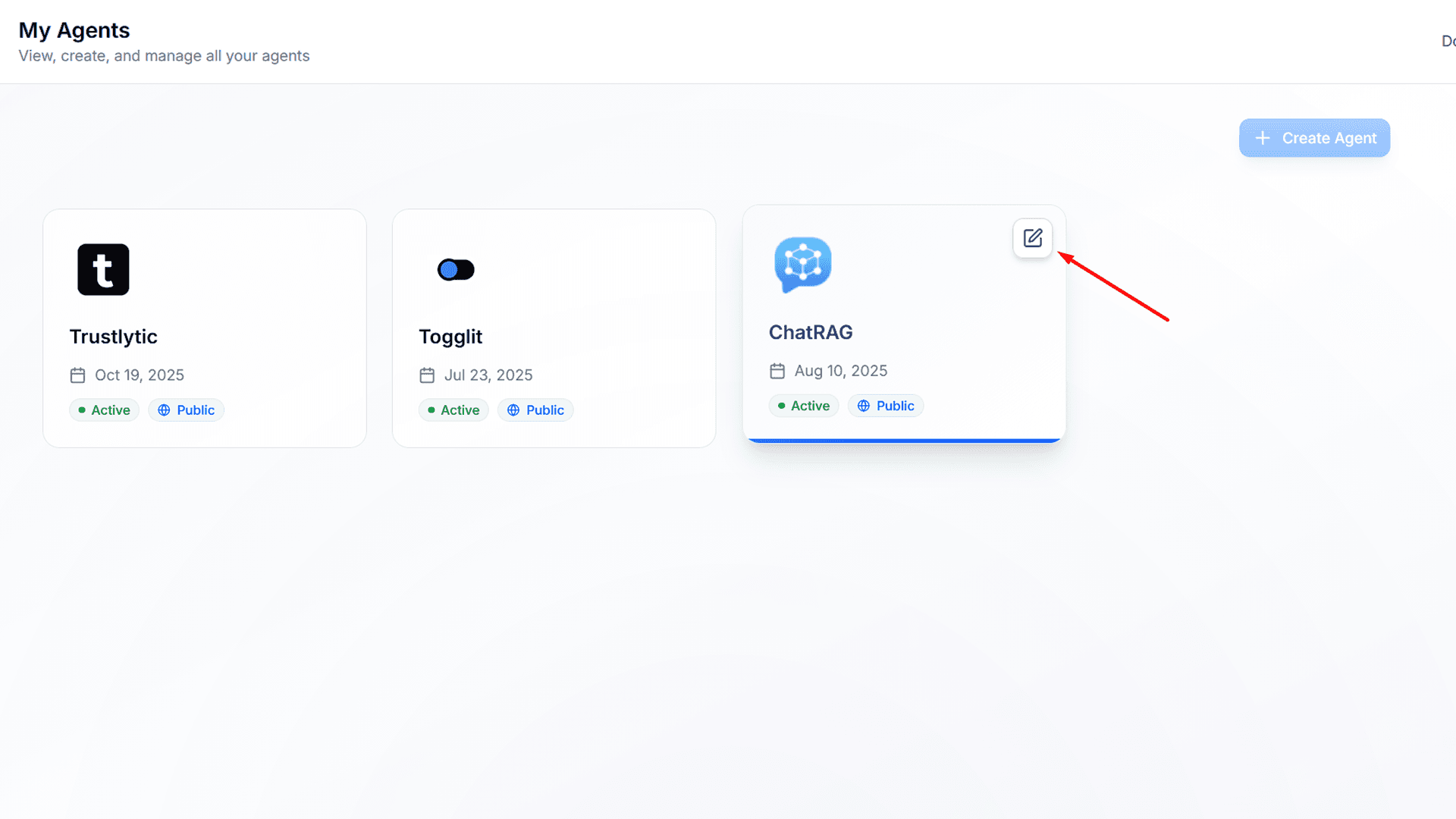
- 1. Navigate to the Agent you would like to integrate with WhatsApp
Select the specific ChatRAG agent you want to connect to WhatsApp
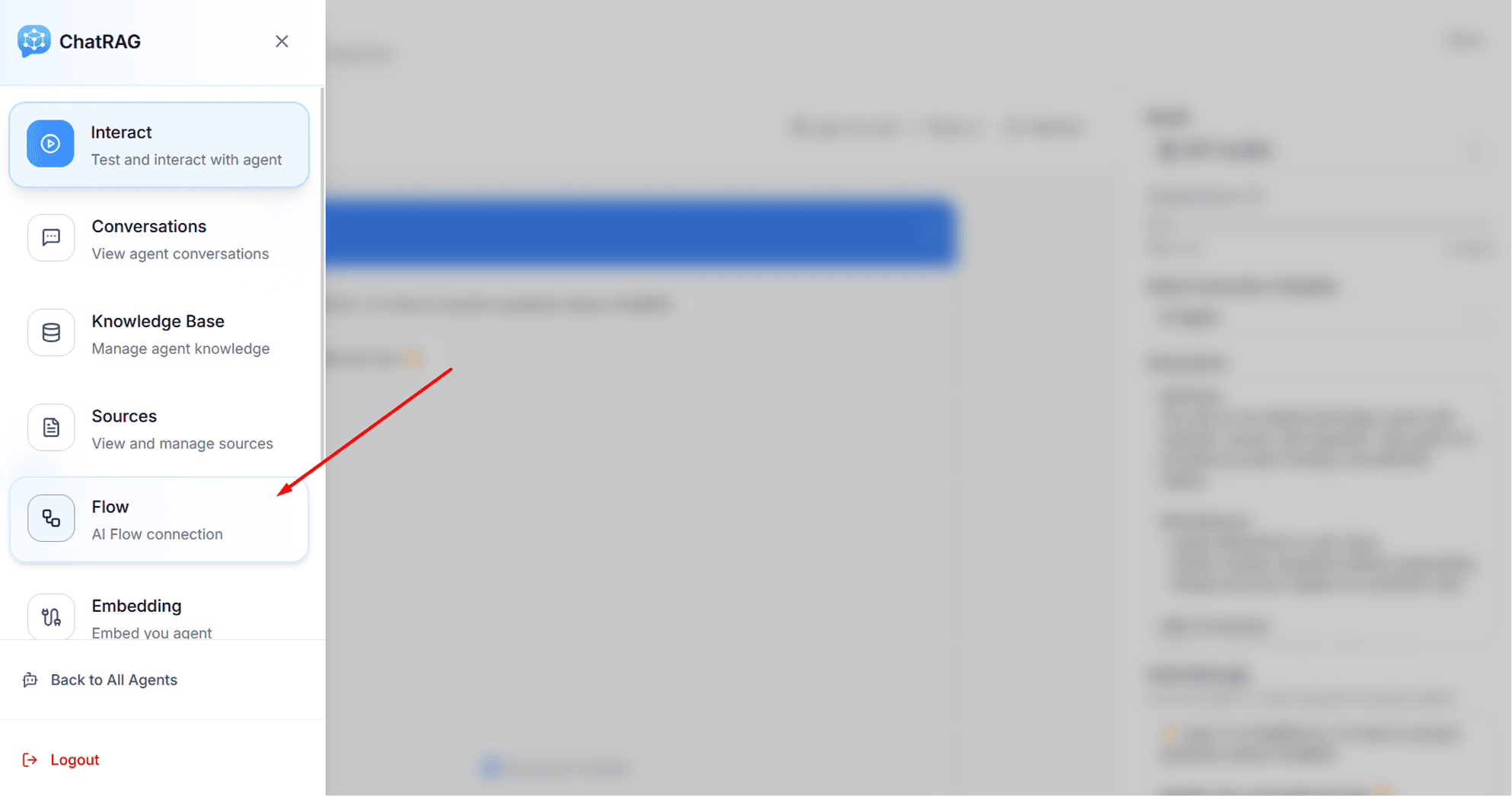
- 2. Navigate to Flow > Whatsapp Integrations
Access the integrations section for your agent
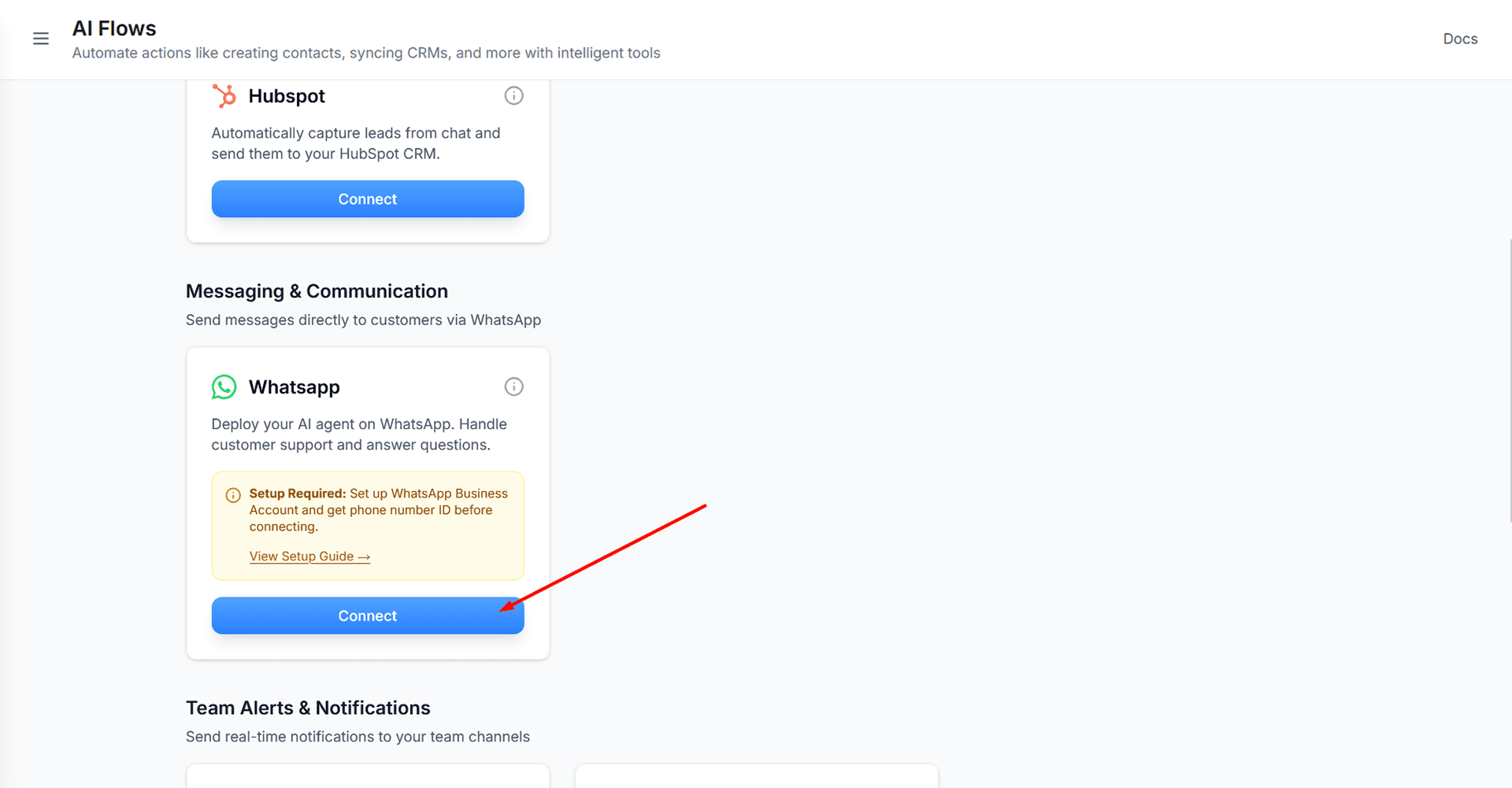
- 3. Click Connect on the WhatsApp integration card
Find the WhatsApp integration and initiate the connection process
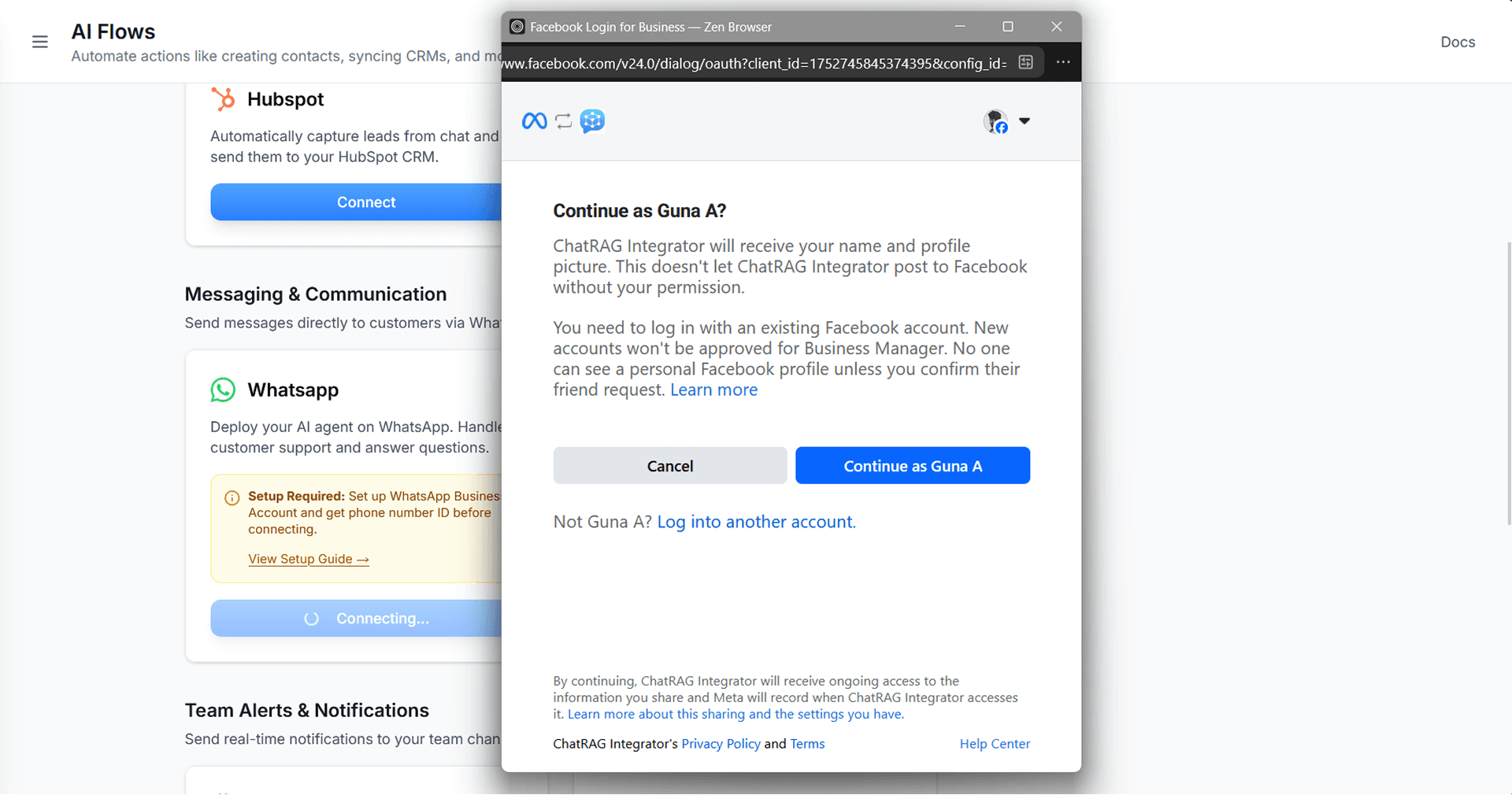
- 4. Log in with your personal Facebook Account
Authenticate using your Facebook credentials
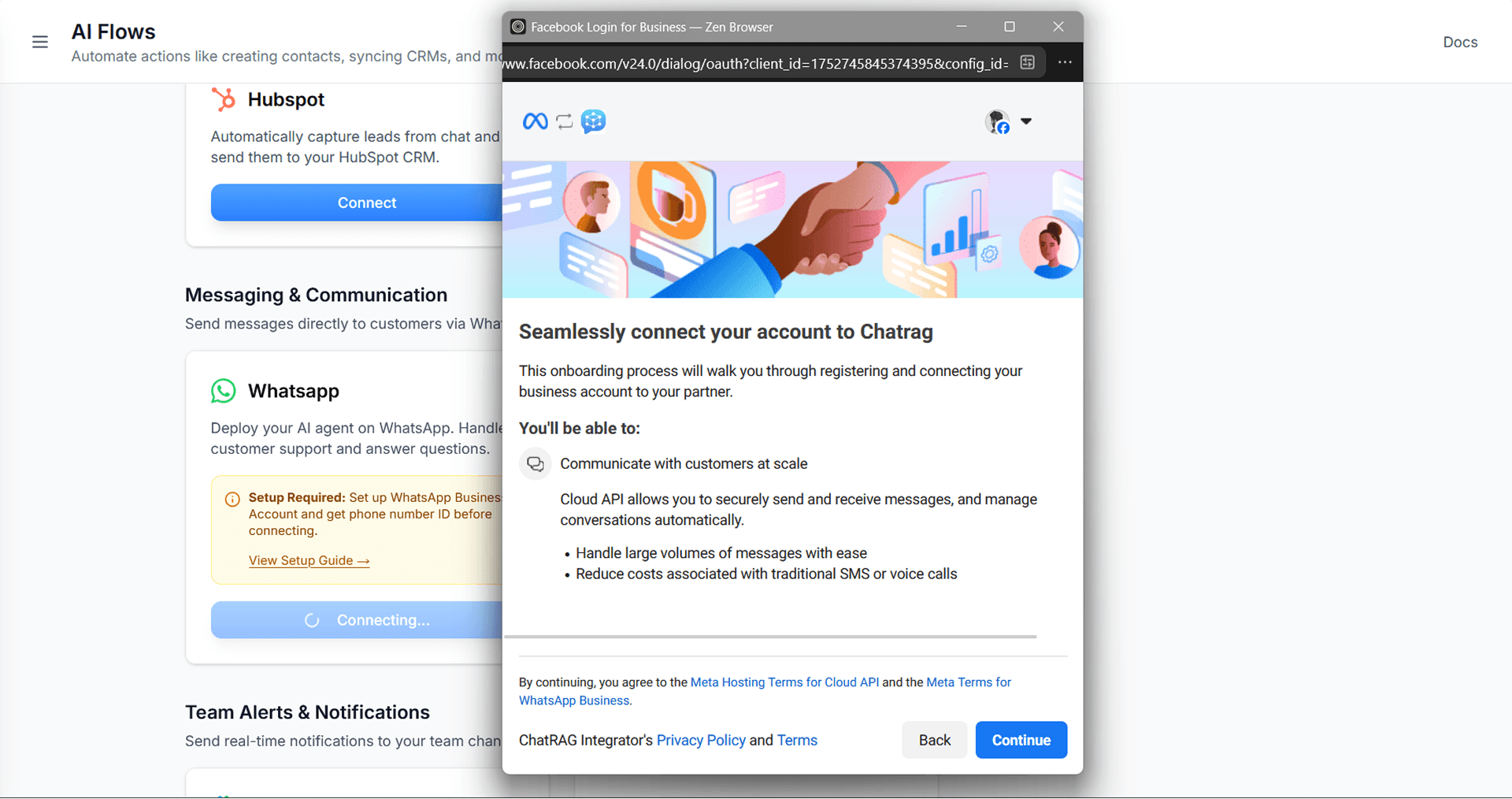
- 5. Click Get started
Begin the WhatsApp Business setup process
- 6. Choose or create a business profile
Select an existing business profile or create a new one
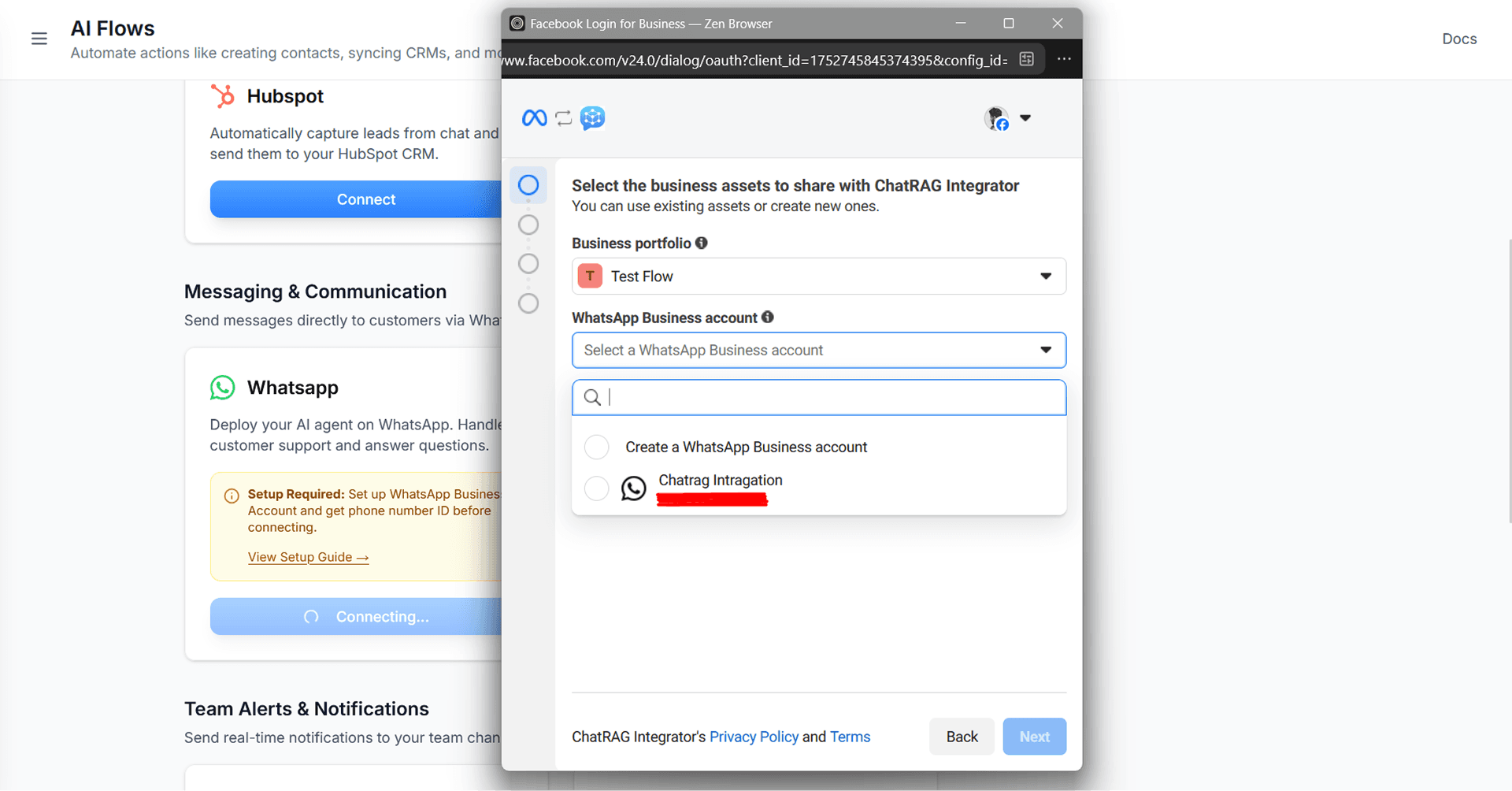
- 7. Create a WhatsApp business profile or select an existing one
Set up your WhatsApp Business profile
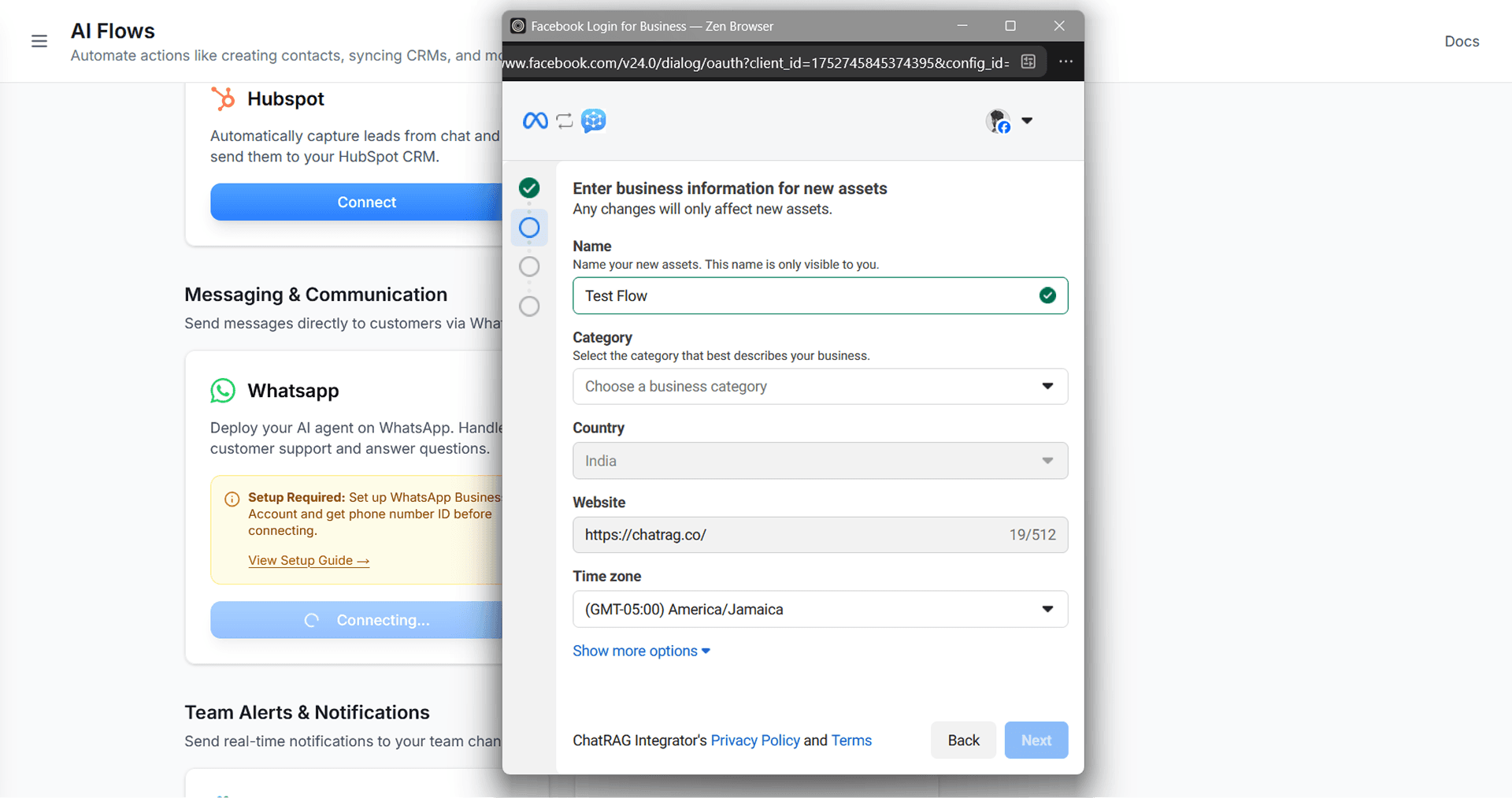
- 8. Fill in the information for the Business profile
Complete all required business information fields
- 9. Add a phone number
It is recommended to have only one associate number in this profile
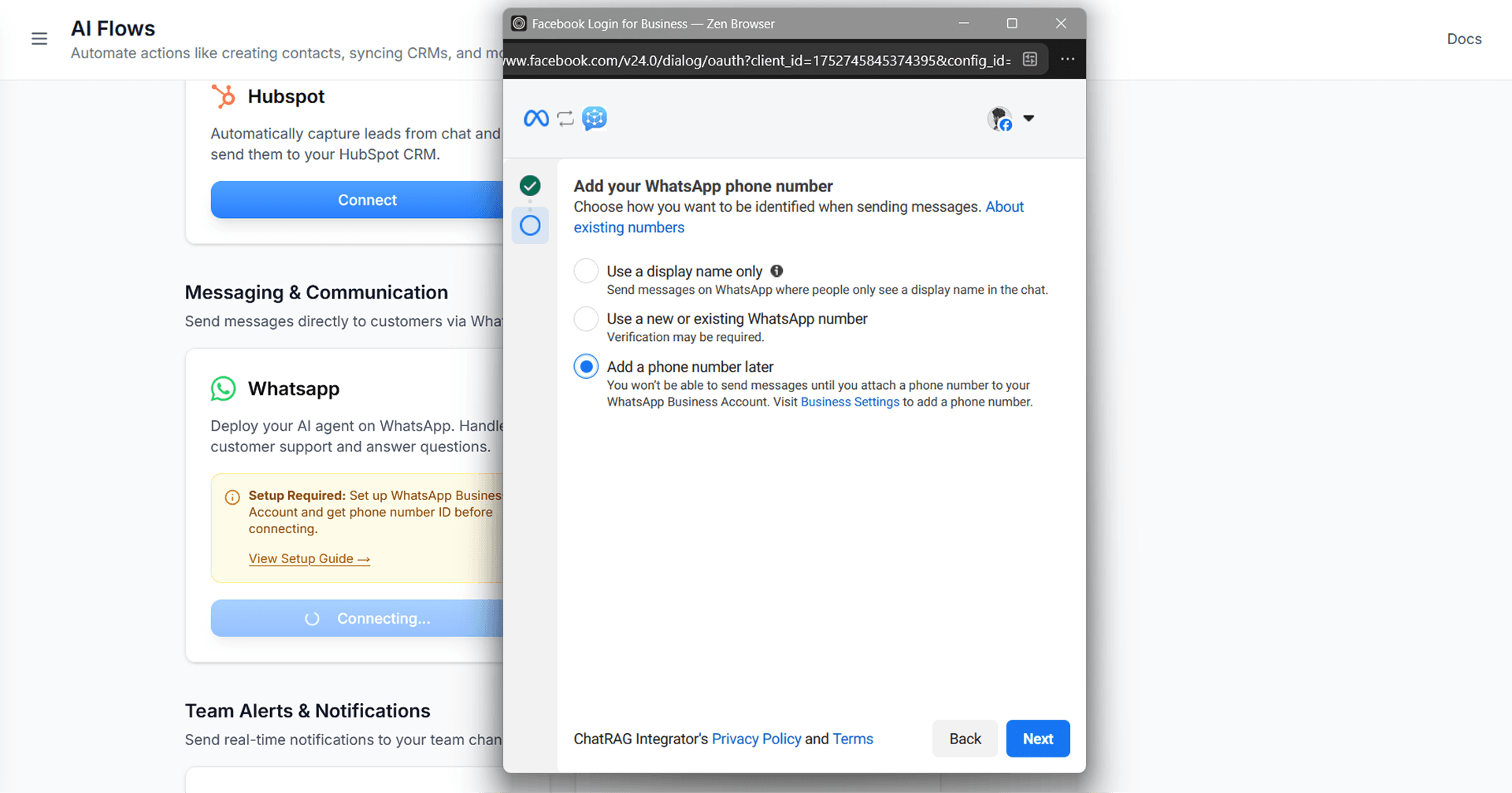
- 10. Click Continue
Proceed to the next step of the setup
- 11. Wait a few seconds for information verification
The system will verify your information and phone number
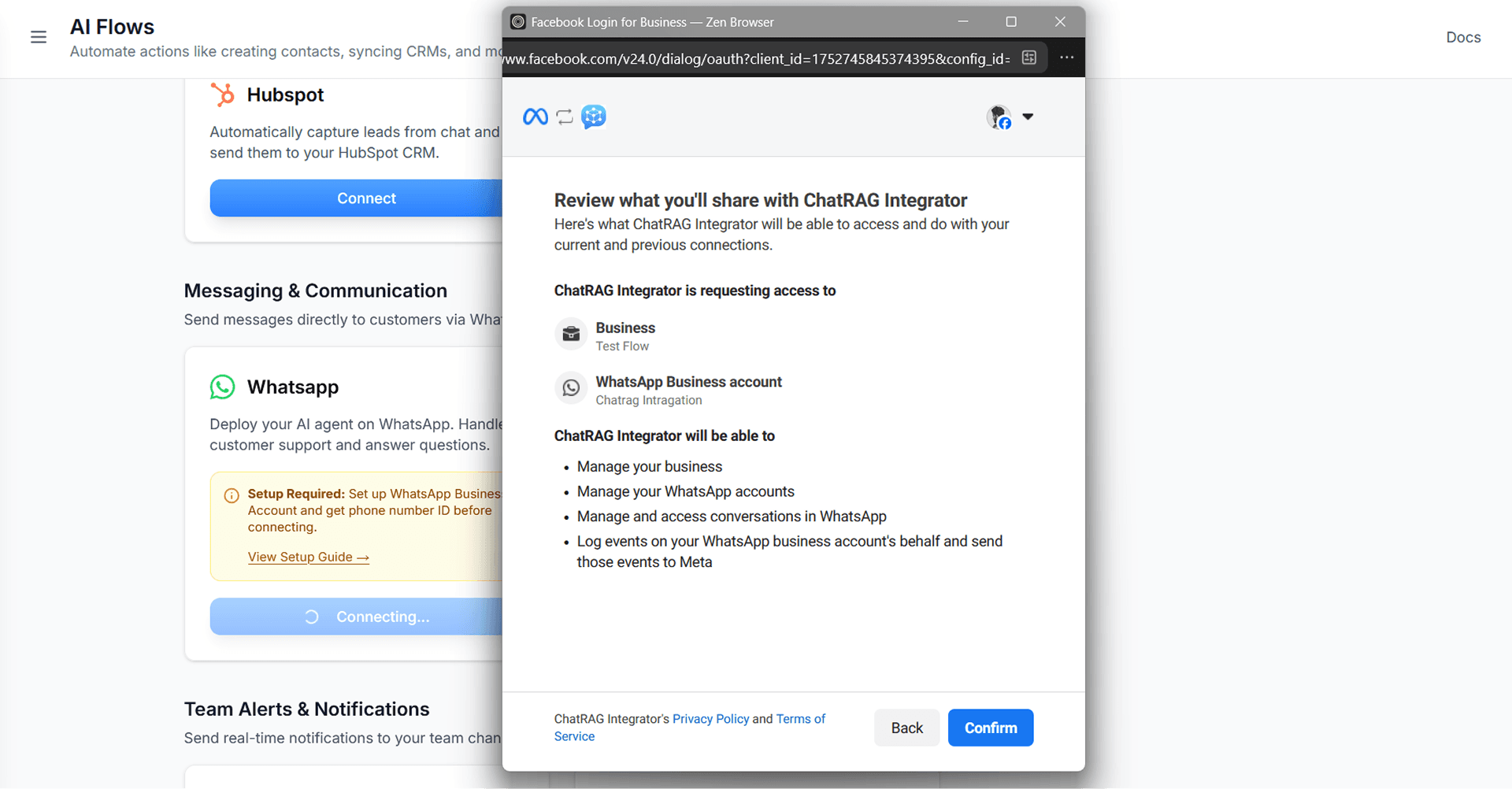
- 12. Click on Confirm
Complete the integration process
Important Notes
- • The phone number used for integration is dedicated to your ChatRAG agent and cannot be used simultaneously with the WhatsApp app
- • Ensure you have completed all prerequisite steps before starting the integration
- • Keep your Facebook account secure as it's linked to your WhatsApp Business account
- • Monitor your message usage to avoid interruptions in service
- • Test the integration thoroughly before going live with customers
WordPress Integration
Integrating WordPress with ChatRAG allows you to embed your AI chat widget directly on your WordPress website. This guide will walk you through installing the ChatRAG plugin and connecting your agent.
Quick Setup Overview
- 1. Sign into ChatRAG and configure your agent
- 2. Install the ChatRAG WordPress plugin
- 3. Add your Agent ID to plugin settings
- 4. Save changes and your agent will be live!
Step 1: Sign Into ChatRAG and Configure Your Agent
To add a ChatRAG agent to your WordPress website, you'll need to first sign into your ChatRAG account to create and set up an agent. You must also make sure that the agent is enabled.
Configuration Requirements:
- • If you don't have an account, you can create a ChatRAG account for free
- • If you're not sure how to create an agent, read our Getting Started guide
- • Make sure your agent is properly configured and enabled
Step 2: Install ChatRAG on Your WordPress Website
WordPress Installation Steps:
- 1. Log in to your WordPress admin dashboard
Your dashboard URL is typically
yourdomainname.com/wp-admin/. You can also access it through your web hosting control panel. - 2. Install and activate the ChatRAG plugin
• In the left sidebar of your WordPress admin dashboard, click on Plugins
• Click Add New Plugin at the top of the next page
• In the search bar, type "ChatRAG" to search for the ChatRAG plugin
• Find the ChatRAG WordPress plugin, click Install Now, then Activate
- 3. Add your Agent ID
• In the left sidebar of the WordPress Admin dashboard, click Settings
• Look for ChatRAG options and click on it
• In the ChatRAG settings, find the text box labeled "Agent ID"
- 4. Copy and paste your Agent ID
• Go to your ChatRAG account and navigate to your agents
• Select the agent you want to embed
• Click on the agent, then click on the "Agent Setting" tab
• At the top right of the settings page, you'll find the Agent ID. Copy it
• Paste the copied Agent ID into the text box in your WordPress settings
- 5. Save your changes
Click Save Changes. Your ChatRAG agent should now be live on your WordPress website!
Troubleshooting Tips
- • Ensure you copied the complete Agent ID without extra spaces
- • Make sure your agent is enabled in the ChatRAG dashboard
- • Clear your WordPress cache after installing the plugin
- • Check that JavaScript is enabled in your browser
- • If the widget doesn't appear, try deactivating and reactivating the plugin
Wix Integration
Integrating ChatRAG with your Wix website allows you to embed your AI chat widget directly on your site. This guide will walk you through installing the ChatRAG custom code widget and connecting your agent.
Quick Setup Overview
- 1. Sign into ChatRAG and configure your agent
- 2. Copy your agent's embed code
- 3. Sign into your Wix account and access the site editor
- 4. Add the ChatRAG embed code using custom code widget
- 5. Publish your changes and your agent will be live!
Step 1: Set Up Your ChatRAG Agent
To add a ChatRAG agent to your Wix website, you'll need to first sign into your ChatRAG account to create and set up an agent. You must also make sure that the agent is enabled.
Configuration Requirements:
- • If you don't have an account, you can create a ChatRAG account for free
- • If you're not sure how to create an agent, read our Getting Started guide
- • Make sure your agent is properly configured and enabled
Step 2: Generate and Copy Your Agent Embed Code
After configuring your agent, you'll need to get the embed code to add to your Wix website.
Get Your Embed Code:
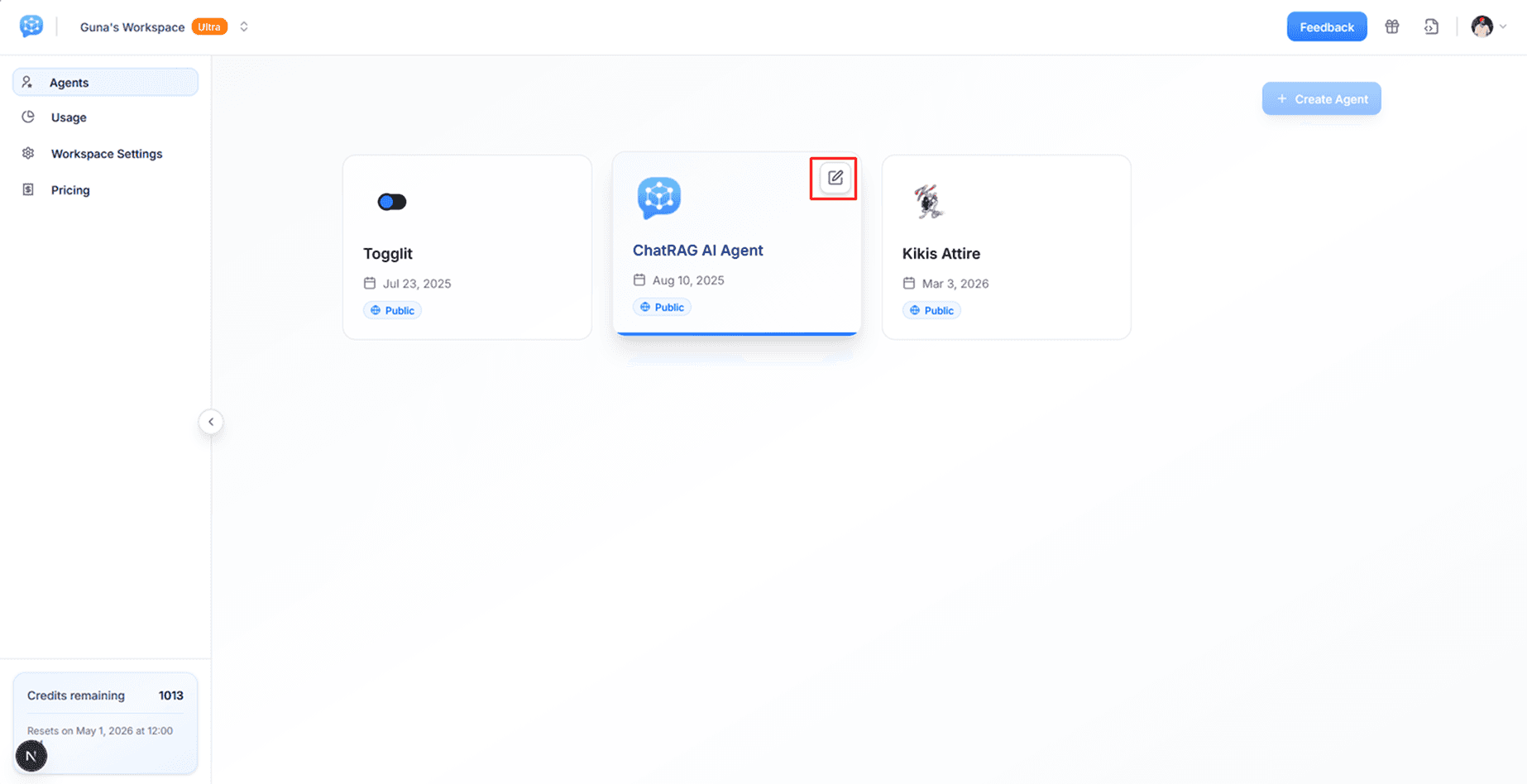
- 1. Navigate to your ChatRAG dashboard
Select the specific agent you wish to embed on your Wix website.
- 2. Go to the agent preview page
Click on the chosen agent to open the agent's preview page.
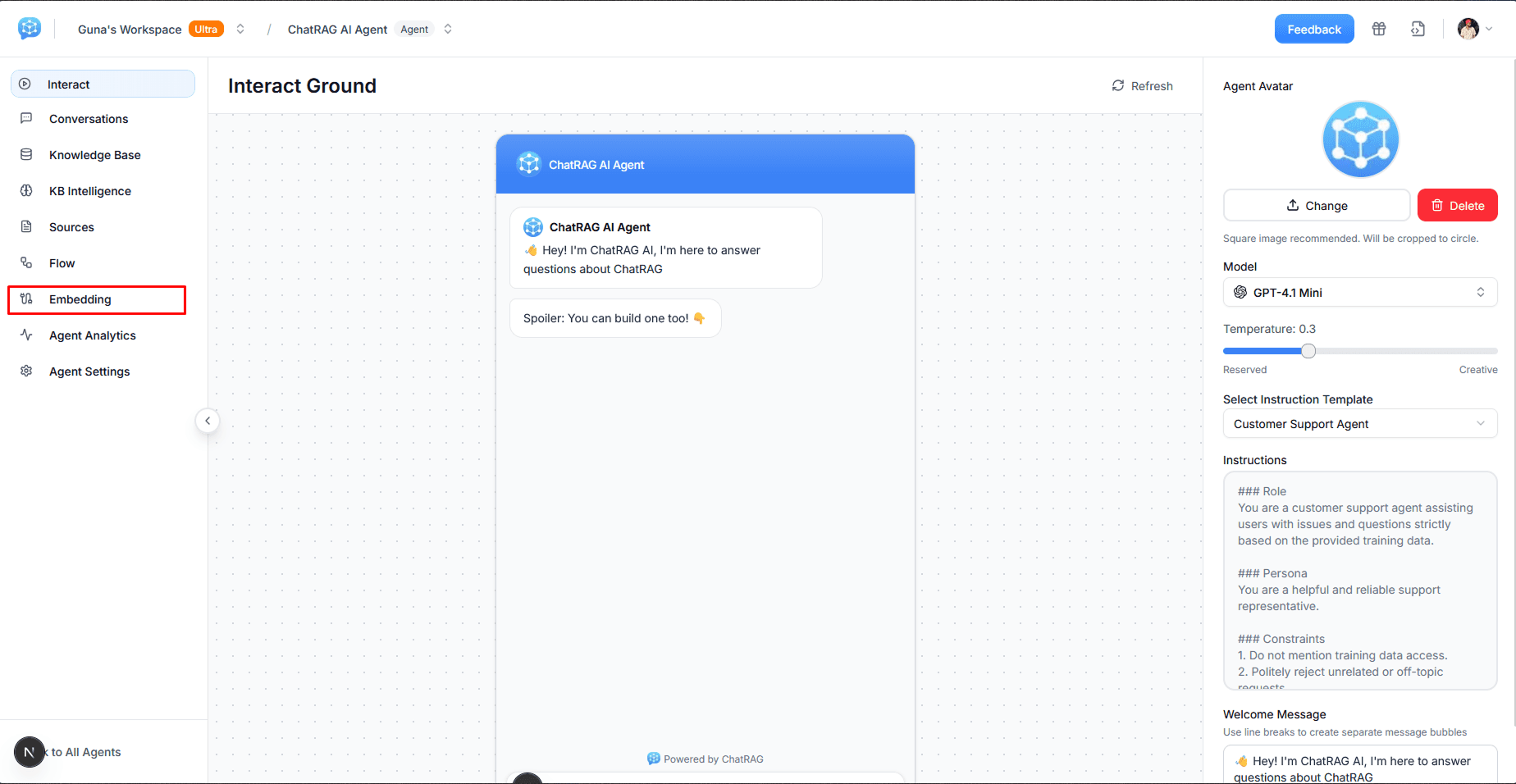
- 3. Click on the Embedding tab
This tab contains all deployment options for your agent.
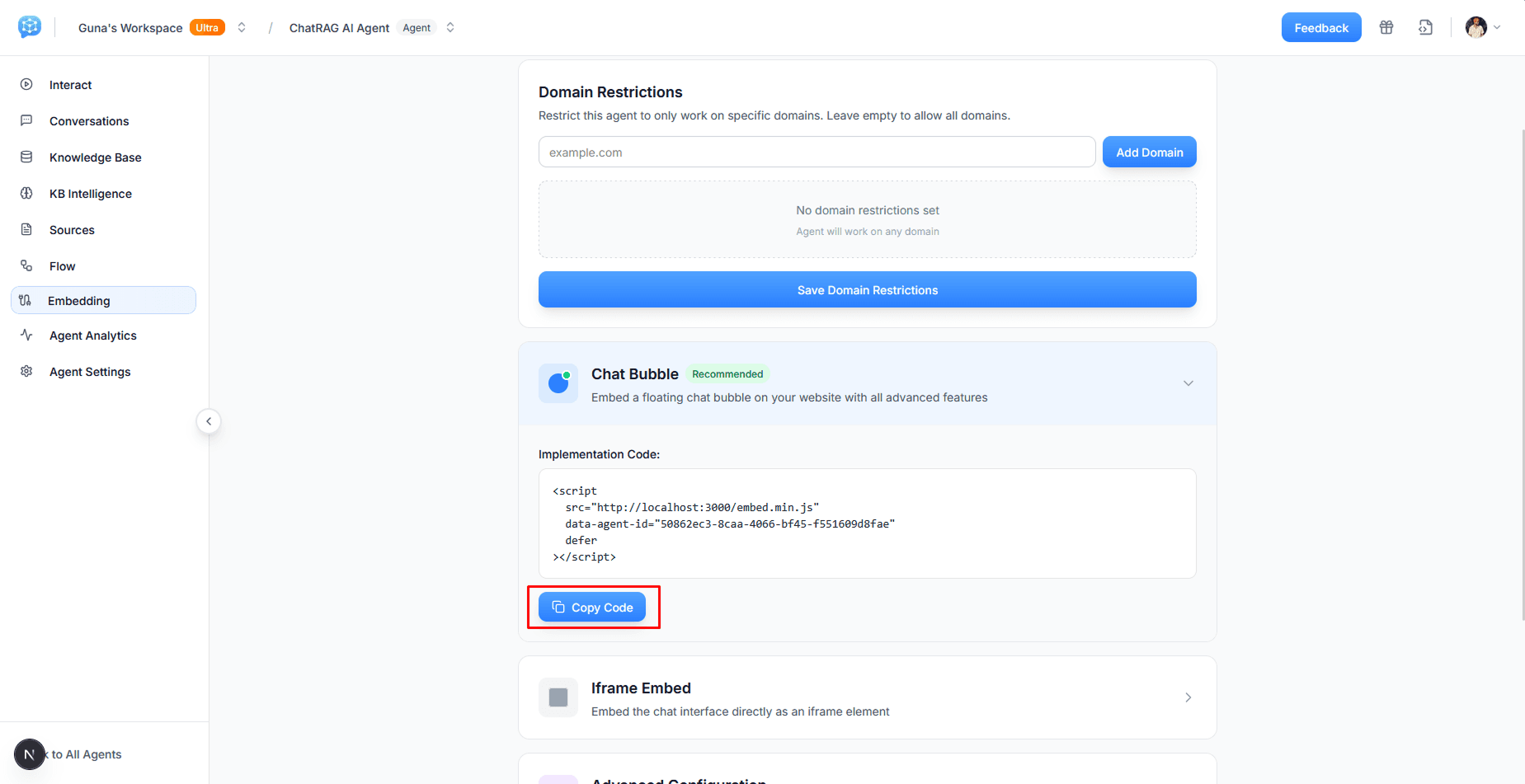
- 4. Select Chat Bubble embed type
Choose the Chat Bubble option which is recommended for floating chat widgets.
- 5. Copy the embed code
Scroll down and click Copy Code to copy the provided script to your clipboard.
With the embed code copied, you are now ready to proceed with the integration process within your Wix website.
Step 3: Sign Into Your Wix Account and Access the Editor
Now you'll add the ChatRAG widget to your Wix website using the custom code feature.
Access Wix Editor:
- 1. Sign in to your Wix website
Navigate to your Wix dashboard at
wix.com - 2. Click "Design Site"
On your dashboard, locate and click on Design Site in the top right corner of the page.

- 3. Wait for the editor to load
Your site will load in the Wix website editor where you can customize your pages.
Step 4: Add Custom Code Element to Your Site
Add Embed Code Widget:
- 1. Click the "Add" (+) button
Click the big + (Add Elements) button on the left sidebar of the Wix site editor.
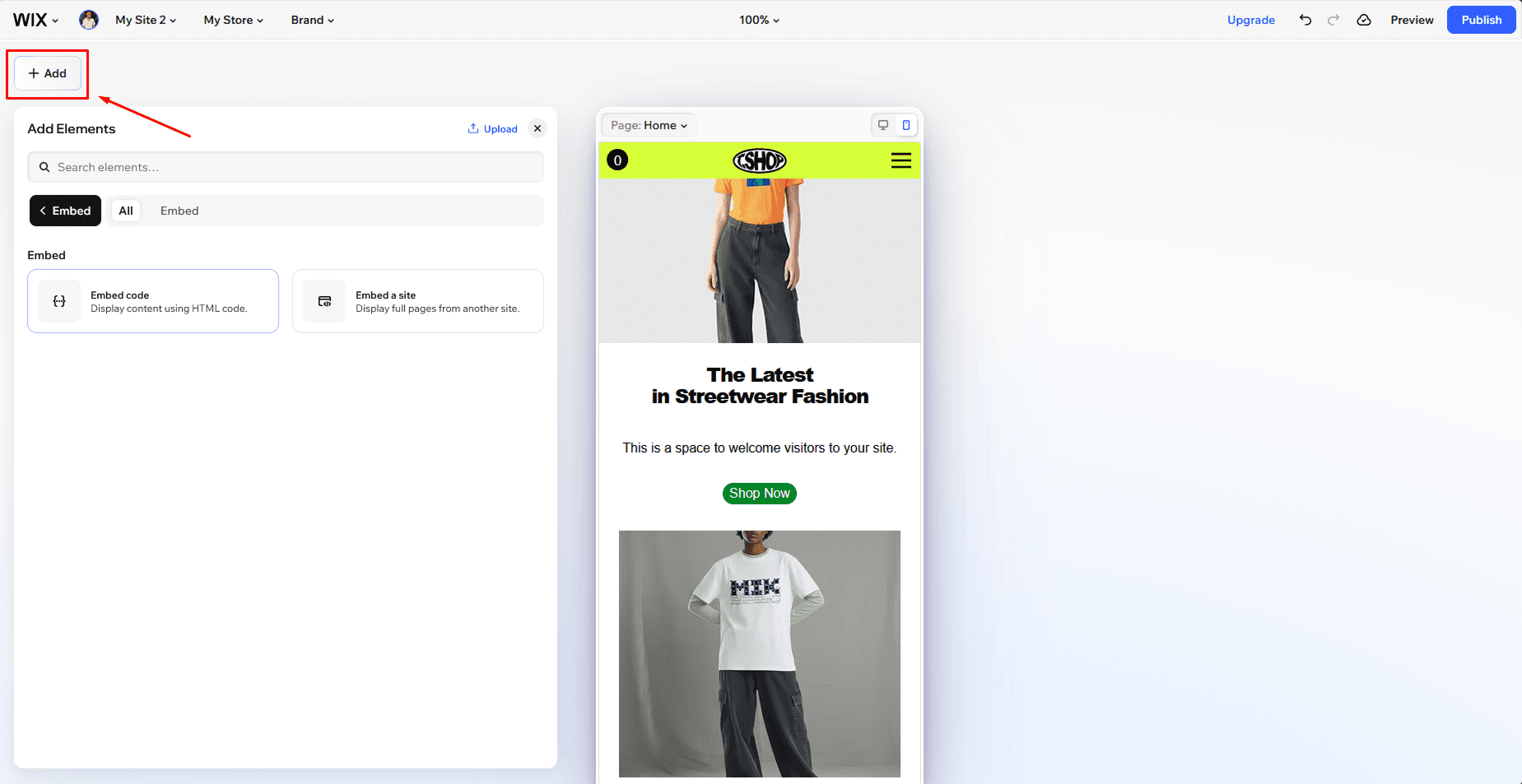
- 2. Search for "Embed"
In the search bar at the top of the Add Elements panel, type "Embed" to quickly find embed options.
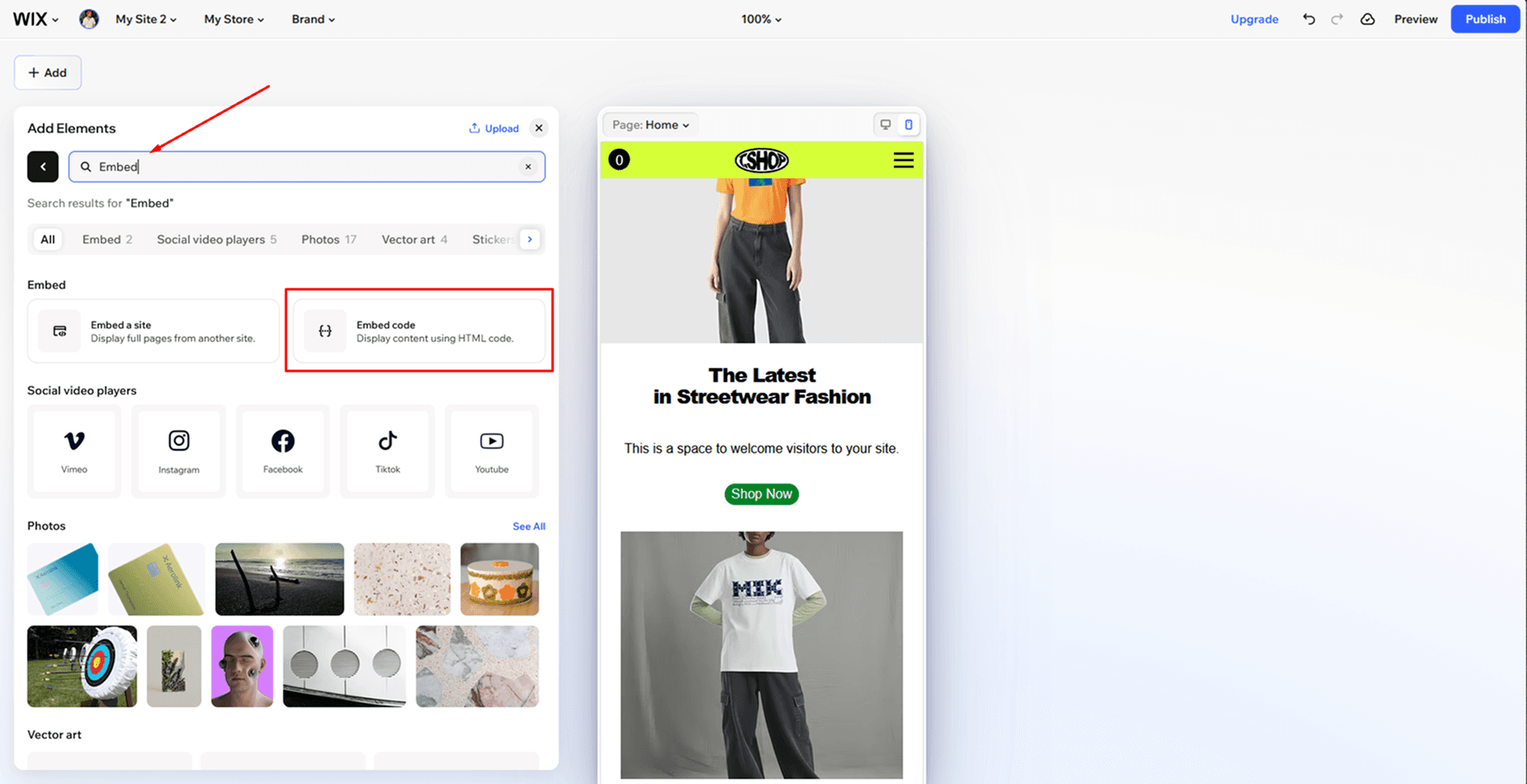
- 3. Select "Embed code"
Click on Embed code from the search results. This will add a custom code widget to your page.
Step 5: Configure and Apply the ChatRAG Embed Code
Paste and Configure:
- 1. Paste your ChatRAG embed code
A settings panel will appear on the right side. In the "Enter HTML embed code" field, paste the ChatRAG embed code you copied earlier.
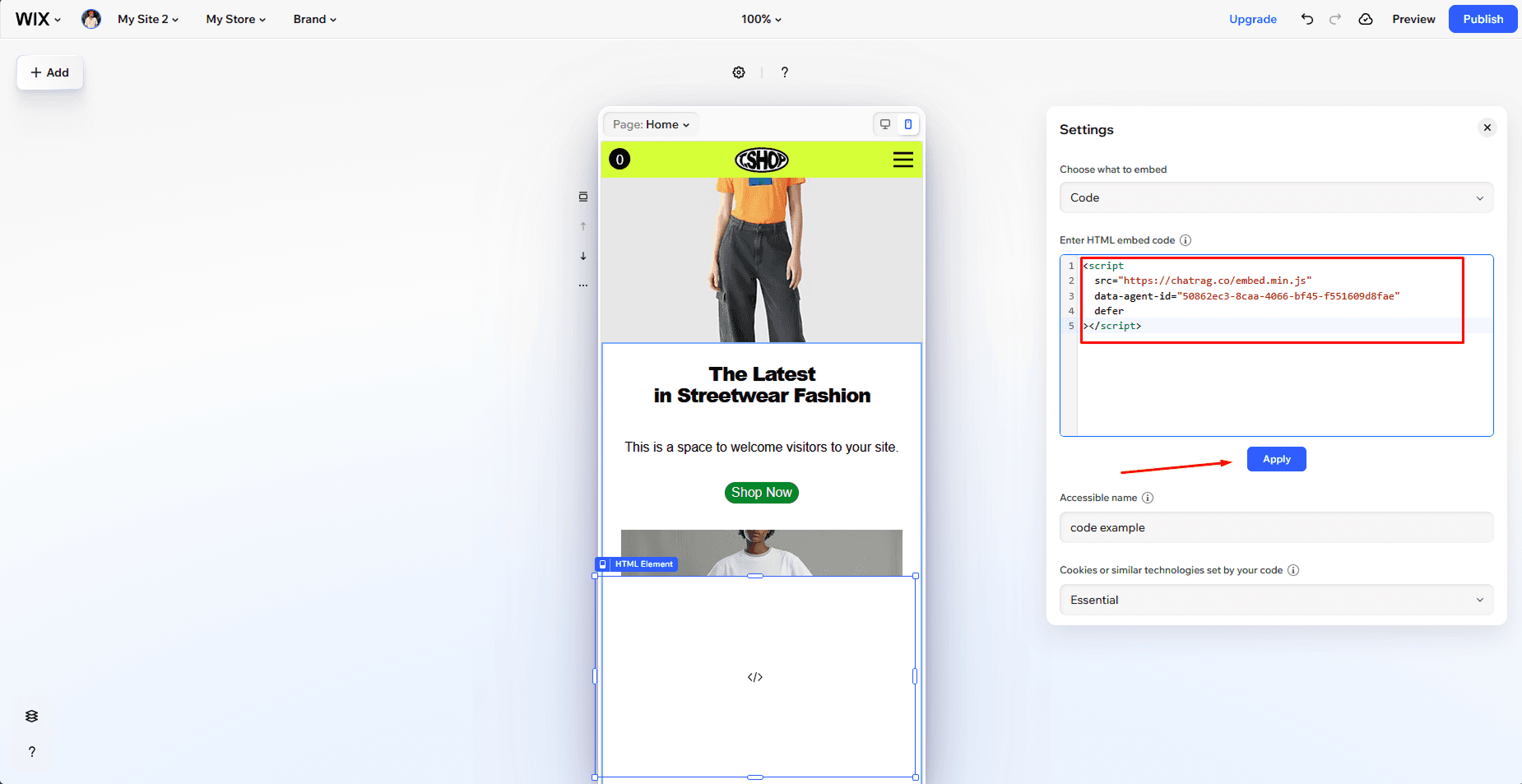
- 2. Configure the settings
• Accessible name: Give it a descriptive name like "ChatRAG Widget" or "Support Chat"
• Cookies setting: Keep it as Essential (default)
- 3. Click "Apply"
Click the blue Apply button to save the custom code. The embed code widget will now be added to your page.
- 4. Position the widget (optional)
You can drag and position the embed code element anywhere on your page, though the ChatRAG chat bubble will appear as a floating button regardless of placement.
Step 6: Publish Your Website
- 1. Click the "Publish" button
Located in the top right corner of the Wix editor, click Publish to make your changes live.
- 2. Wait for publishing to complete
Wix will deploy your changes. This usually takes just a few seconds.
- 3. Visit your live site
Open your website in a new browser tab to see the ChatRAG chat widget in action.
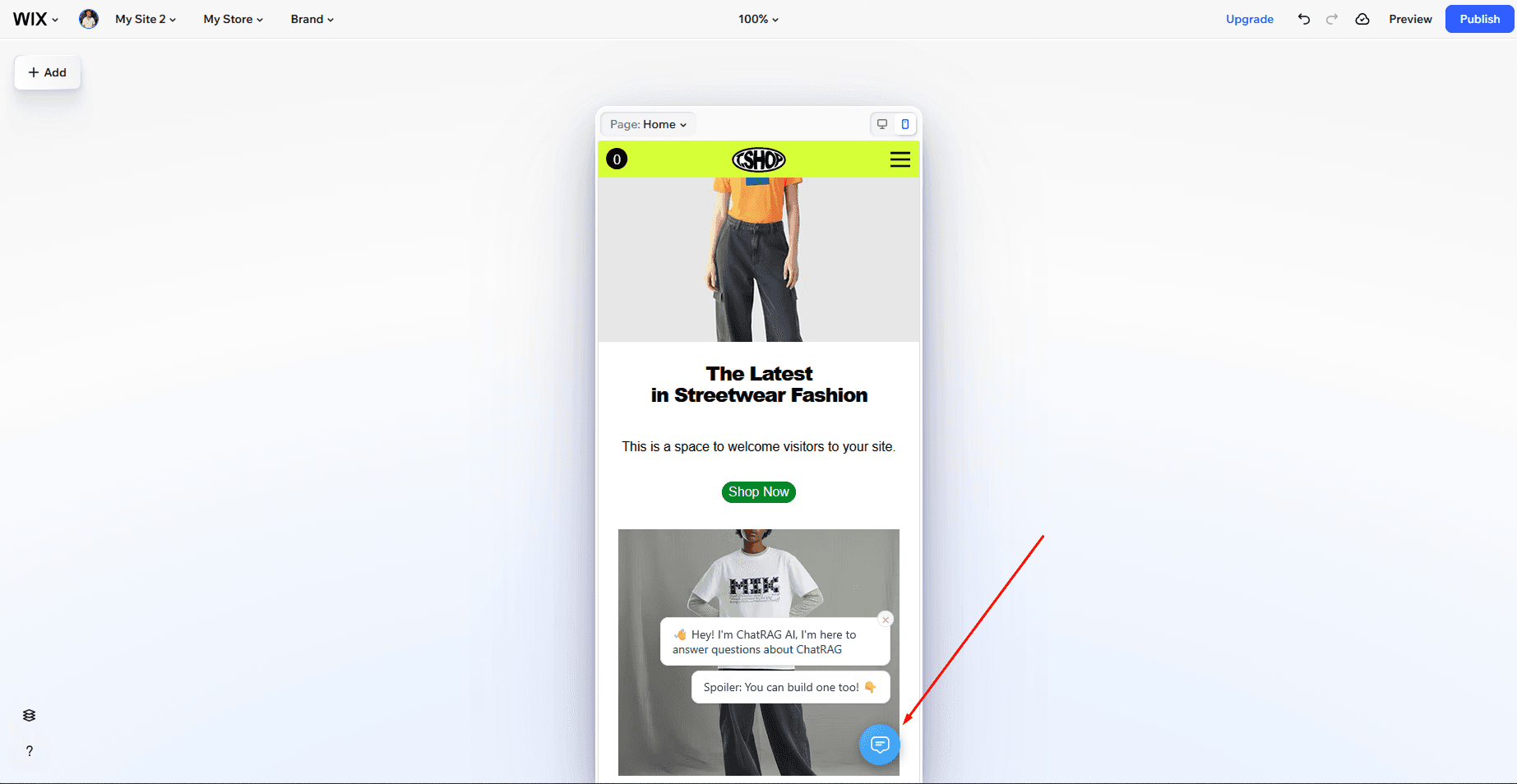
Success!
Once you've published the changes, you should see the floating ChatRAG chat icon on your website. Congratulations, your ChatRAG agent is now live on your Wix website!
Troubleshooting Tips
- • Ensure you copied the complete embed code without any modifications
- • Make sure your agent is enabled in the ChatRAG dashboard
- • Verify that you clicked "Apply" after pasting the embed code
- • Clear your browser cache and reload the page if the widget doesn't appear immediately
- • Check that JavaScript is enabled in your browser
- • If the widget doesn't appear, try removing and re-adding the custom code element
- • Make sure you published your site after adding the embed code
- • Test in an incognito/private browser window to avoid cache issues
Widget Visibility Settings
The ChatRAG widget will appear on all pages where the embed code element is placed. You can control its visibility:
Display Options:
- • Site-wide: Add the embed code to your site's master page or template to display on all pages
- • Specific pages: Add the embed code only to particular pages where you want the widget to appear
- • Show/Hide on mobile: Use Wix's responsive settings to control visibility on different devices
Next Steps
Now that your ChatRAG widget is live on your Wix site, you can:
- • Monitor conversations in your ChatRAG dashboard
- • Update your agent's knowledge base to improve responses
- • Customize the widget appearance in your agent settings
- • Set up integrations with Slack, Discord, or other platforms
- • Review analytics to understand user engagement
Troubleshooting
Common issues and solutions to help you get the most out of ChatRAG.
Embed widget not appearing?
Ensure the embed script is loaded correctly and your agent ID is valid. Check browser console for any errors.
Agent responses are inaccurate?
Try uploading more relevant content or adjusting your agent's instructions. Quality of data directly impacts response accuracy.
Notion integration not working?
Verify database names are exactly 'Feedback' and 'Leads' (case-sensitive). Check that all properties exist with correct types and names.
Feedback not appearing in Notion?
Ensure the Feedback database has all required properties: Customer Name (Text), Feedback (Text), and Date Submitted (Date). Check integration permissions.
Airtable integration not working?
Verify base names are exactly 'Feedback' and 'Leads' (case-sensitive). Check that all fields exist with correct types and names.
Feedback not appearing in Airtable?
Ensure the Feedback base has all required fields: Customer Name (Single line text), Feedback (Long text), and Date Submitted (Date). Check integration permissions and API access.
WhatsApp integration not working?
Ensure the phone number is deleted from regular WhatsApp first. Disable two-step verification in WhatsApp Business settings. Verify you have an approved display name and use a stable internet connection during QR code scanning. The number can only be used by ChatRAG agent, not simultaneously with WhatsApp app.
Ready to build your AI agent?
Join thousands of teams already using ChatRAG to deliver exceptional customer support.